Official game · Ready to host
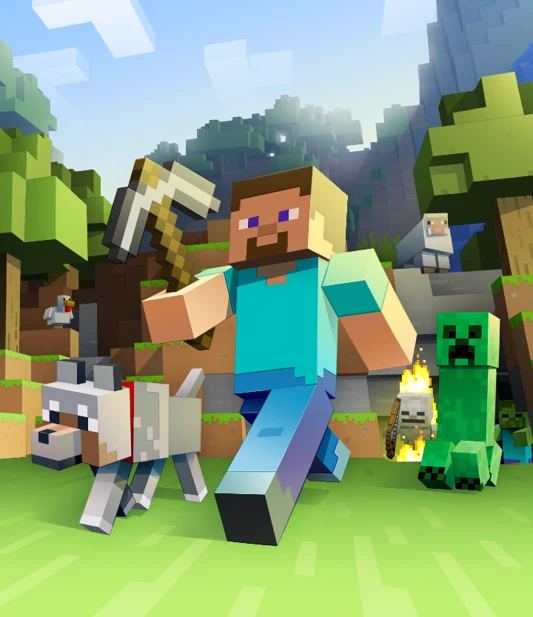
Minecraft: Java Edition
Any modpack, shader or version of the game. Your world, your rules.
Free · up to 4 players
Guides, straight from the app
How to host and how to join
Play Minecraft: Java Edition through Neonlink using your usual launcher, modpack, or vanilla setup. No Neonlink mods, VPNs, port forwarding, or extra network configuration are needed. Just start Minecraft the way you normally do, then link up with your friends. If you’re using a modpack, make sure everyone is using the same one.
LAN Server
Choose a world
Start Minecraft and choose a singleplayer world to play in.
Make sure all players use the same game version and mods.
Open to LAN
Press ESC to open the menu
Click Open to LAN on the right
Switch LAN to ON and enter port: the port shown in Neonlink
Hit Apply changes
Choose a world
Once the game is running let Neonlink connect you with all your friends.
Press Online below.
Check the Game & network tab for any problems and check the troubleshoot tab if anything does not work out.
Have fun!
A LAN world only allows up to 8 players, even when using Overdrive. Use a dedicated server instead if you have more players.
A LAN world only stays online while that world is open. If you leave the world or close Minecraft, your friends will be disconnected.
Dedicated Server
Start a dedicated Minecraft server using the server software you prefer.
Popular options include:
- Vanilla — the official Minecraft server. Setup guide: How to set up a Minecraft: Java Edition server
- Paper — a very popular server based on Spigot. Setup guide: Paper getting started
- Fabric Server — a common choice for Fabric mods. Setup guide: Installing a Fabric server
- Spigot — a classic plugin server. Setup guides: Spigot installation and BuildTools
Follow one of those setup guides until the server starts successfully, then continue with the next step.
Click Online to start the session.
Wait for Neonlink to detect the server.
Once your friends started their links, they can use the connection info shown in their Neonlink app to connect to your server.
Join the server by opening Mincraft, clicking Multiplayer and then Add Server to add your server running at: {% $loopback %}:the port shown in Neonlink
A dedicated server can keep running even when you are not actively playing on it, which makes it better for longer sessions.
Dedicated servers are also a good option if you want to use server-side-only mods or keep the server setup separate from your own game.
When you are done, stop the server normally in its own window or launcher. Closing only Minecraft will not stop a dedicated server.
Get ready
Hit Online to auto-connect to the host once the server is running.
Wait for the server to start
Wait for the host to start the game server.
Open the game
Start Minecraft using your preferred launcher and open the multiplayer menu.
Make sure to run the same game version as the host and install the same mods as well.
Join the game
If the server is running in LAN mode you will see it listed already.
If it's not, or isn't working for some reason use Direct Connection or Add Server the address shown in Neonlink
Check the troubleshoot tab if you have issues connecting.
connection refused: getsockopt
This error might appear when you are trying to join a game. It typically means Neonlink found Minecraft but can't send the game traffic data properly.
Neonlink tries to auto-detect the correct network interface on your computer, but sometimes it fails to pick the correct one.
In Neonlink:
- Click your profile icon in the top right of the app.
- Select Settings in the dropdown menu.
- On the left, select
Network - Try other network interfaces if available.
- Restart the link Online and try again.
Still stuck? Ask in the Discord, the fixes for this exact game also live in the app next to the room.
Good to know
Questions before the first lobby
Do my friends need an account?
No. They install Neonlink, paste your invite code and join. Accounts are only needed for the paid tiers.
Do I have to open ports or set up a VPN?
No. Neonlink handles the networking on your PC; there is nothing to forward and nothing to configure on the router.
How many people can join?
Up to four players per lobby on the free tier. Overdrive lifts the ceiling; actual limits depend on the game and your hardware.
What if the game is modded?
That works, as long as everyone runs the same game version and the same mods or mod pack as the host.
Games library
More games to host
Stuck or something odd?
Troubleshooting lives in the app next to the room. For everything else, the Discord answers fast.